Lesson 14.2. UI Flow. Burning with Mac
-
The purpose of this lesson
Hi! Today we will learn how to flash M5 using macOS (figure 1).

Figure 1
This lesson will teach you how to: update the M5 firmware using the macOS operating system.
Let's start!
The first thing to do is to visit the official website https://m5stack.com, then select Explore [1] (figure 2), Download [2] from the top menu.
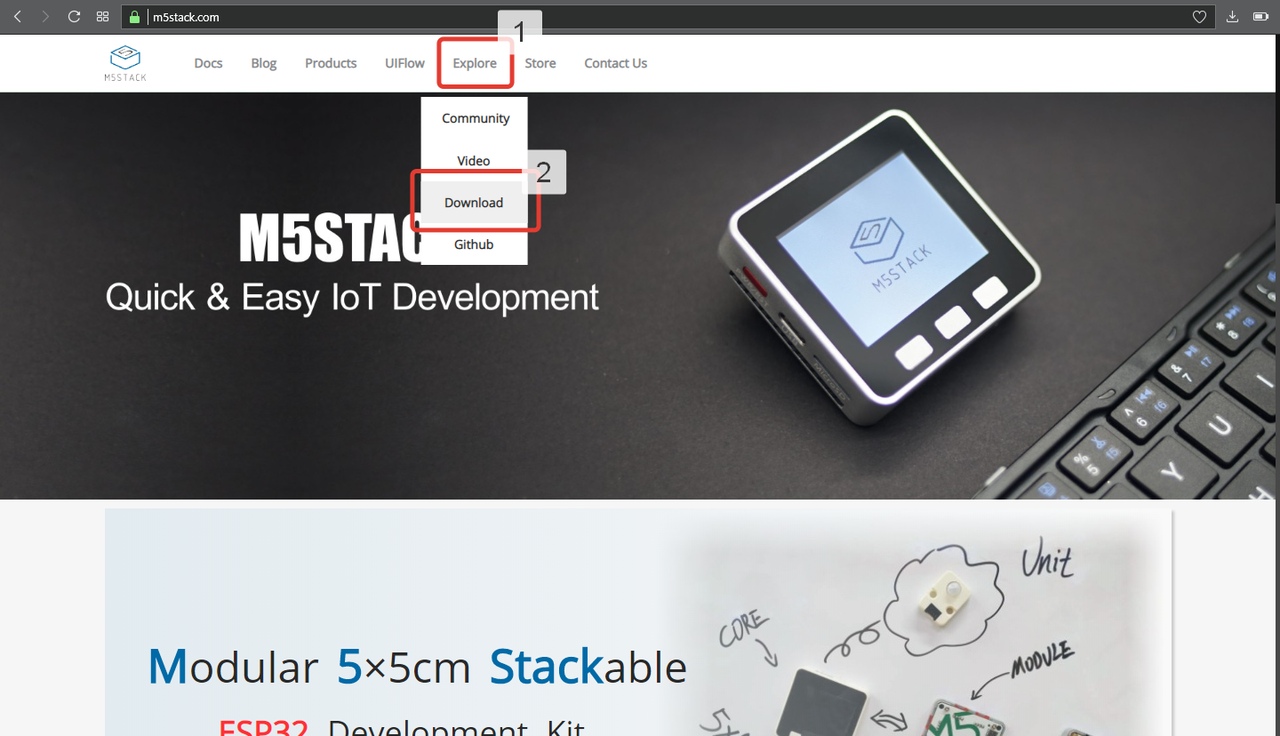
Figure 2
The first thing to download is the driver [1] (figure 3) and the program [2].

Figure 3
Once the driver download is complete. Open the file as shown in figure 4.
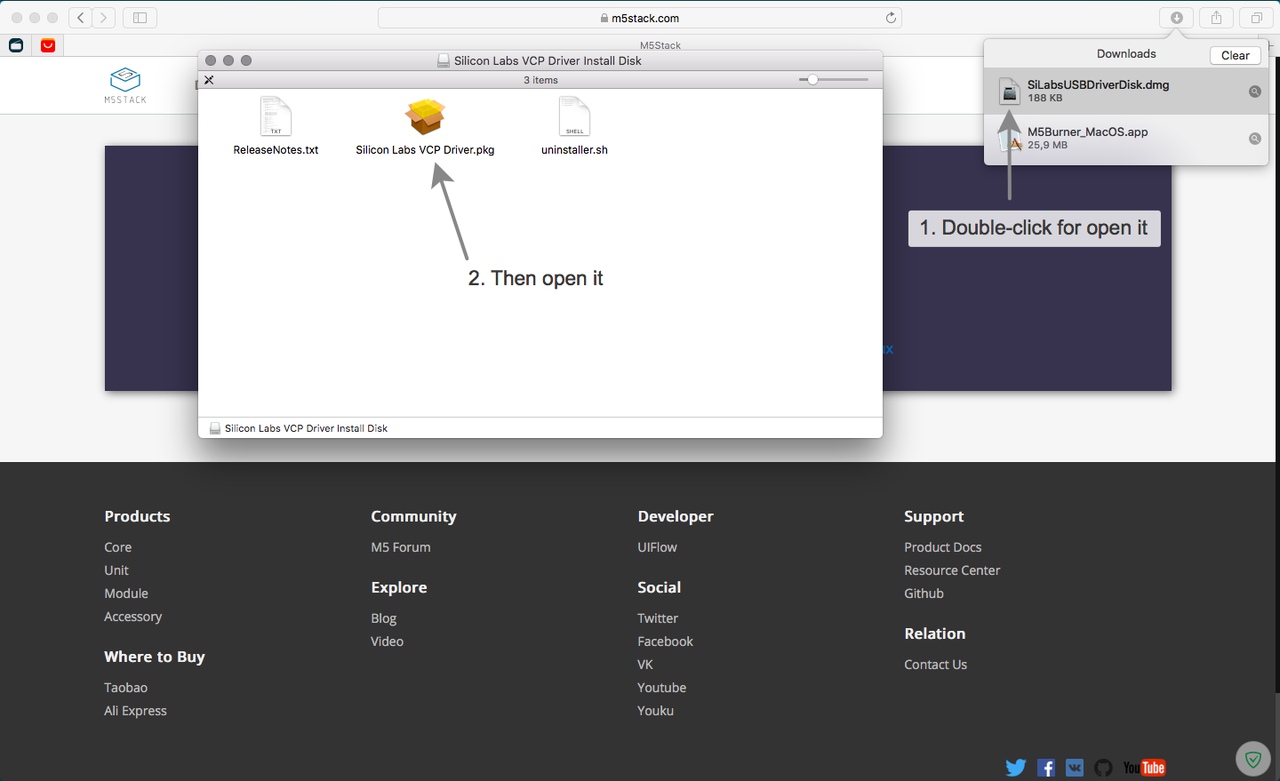
Figure 4
Proceed according to the screenshots in figures 5-5.6.

Figure 5

Figure 5.1

Figure 5.2

Figure 5.3

Figure 5.4
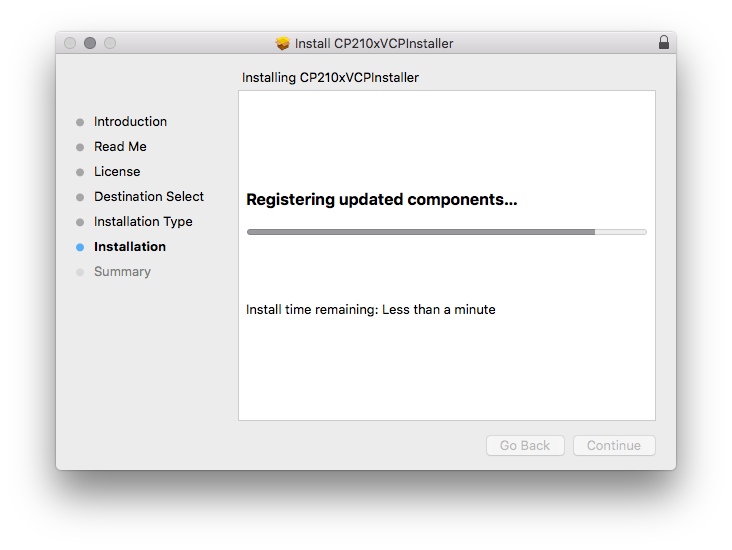
Figure 5.5

Figure 5.6
Great! Drivers are installed. You must now allow the operating system to run third-party applications. To do this, open the search [1] (figure 6), then find the Terminal application.app and start it by pressing Enter [2].

Figure 6
Now write the line below and press Enter (figure 6.1).
sudo spctl --master-disable
Figure 6.1
Good! Now click on the Apple in the upper left corner [1] (figure 6.2), then open System Preferences... [2], then open Security & Privacy [3].

Figure 6.2
Make sure you have the radio check box set to Anywhere (if not, check it) (figure 6.3).

Figure 6.3
Now go back to the browser to downloads [1] (figure 7) and open the file with the Ctrl key pressed [2].

Figure 7
So, now connect your device to your Mac with a USB cable. Select the most current SOFTWARE version and click on the Flash [1] button (figure 7.1). At the end of the process, the indicator will be completely painted [2].

Figure 7.1
Once the device is flashed - disconnect the cable from the Mac and press the red button (the same power button) on the M5. That's it!
Downloads
Alas, there is nothing here today :)
-
This post is deleted! -
@dimi The illustrations are missing from this page.
-
This information is outdated anyway, you can flash the firmware on mac using the firmware burner tool within uiflow desktop version


Hello! It looks like you're interested in this conversation, but you don't have an account yet.
Getting fed up of having to scroll through the same posts each visit? When you register for an account, you'll always come back to exactly where you were before, and choose to be notified of new replies (either via email, or push notification). You'll also be able to save bookmarks and upvote posts to show your appreciation to other community members.
With your input, this post could be even better 💗
Register Login